Interested in Signing up for IM?
Contact Inservio Staff here in order for them to help you sign up for IM.
The below steps are only relevant to Inservio Staff. If you wish to sign up for IM, please contact Inservio.
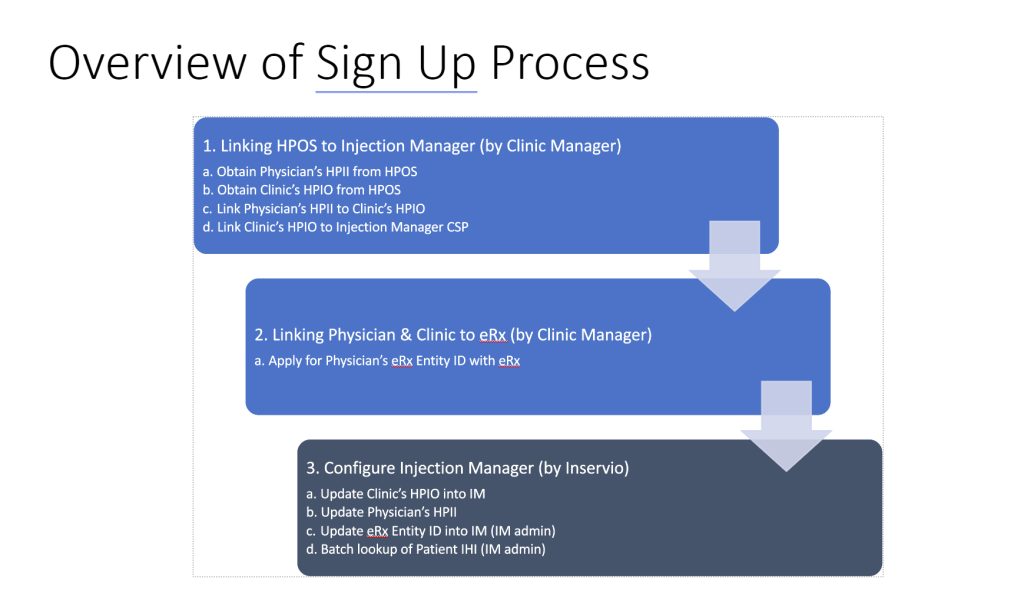
Step 1a:
Obtain Physician’s HPII from HPOS
- A HPI-I is a unique number that identifies the Physician in the HI Service.
- There are 2 ways to get a HPI-I:
- register with Ahpra, which will assign the physician with a HPI-I. Once done, the physician can contact Ahpra to find out their HPI-I.
- register for a HPI-I in the HI Service using Health Professional Online Services (HPOS).
Full details here.
Step 1b:
Obtain Clinic’s HPIO from HPOS
- A HPI-O is a unique number that identifies a clinic in the HI Service.
- To get a HPI-O, the clinic needs to:
- provide healthcare related services
- employ at least one individual healthcare provider who has a HPI-I.
- The clinics needs to be registered as a seed organisation or a network organisation in the HI Service. Once registered, the clinic will receive a HPI-O.
Full details here.
Step 1c:
Link Physician’s HPII to Clinic’s HPIO
- After obtaining a Healthcare Provider Identifier (HPI-I) for each individual healthcare provider, one can link their HPI-I to the HPI-O.
Full details here.
Step 1d:
Link Clinic’s HPIO to Injection Manager CSP
- Injection Manager is a CSP(Contracted Service Provider) ie IM offers software services to the clinic. Therefor the clinic will need to link the HPIO to Injection Manager CSP to allow Injection Manager to operate on their behalf.
- Link the clinic to “ADHEREON PTY LTD “. Search for CSP registration number: 8003632500099007.
Full details here.
Step 2:
Apply for Physician’s eRx Entity ID with eRx
- Follow this link: https://register.erx.com.au/prescriber
- Chose “Register as a Prescriber”
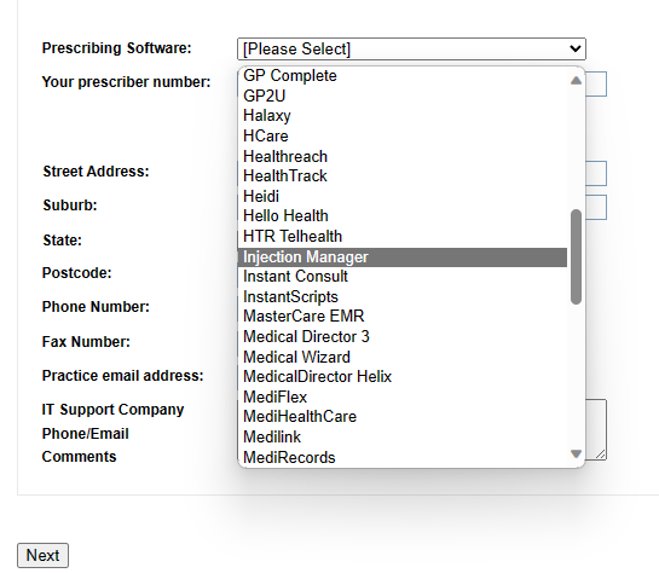
- Complete the registration form. Choose “Injection Manager” as the prescribing software
- Once approved, Injection Manager admin will be notified of the new Entity ID and it’ll be configured for the clinic.
- This step will need to be repeated per Clinic per Physician.
Step 3a:
Update Clinic’s HPIO into Injection Manager
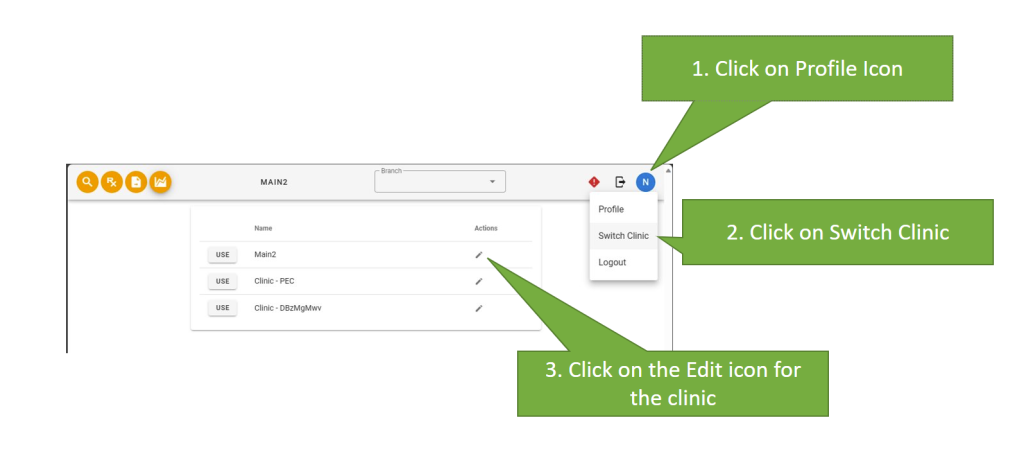
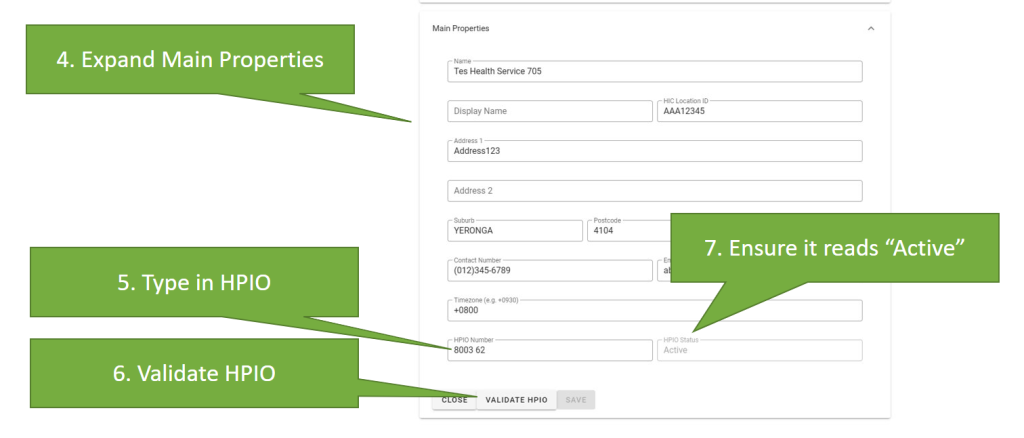
Navigate your way to the switch clinic page. Click on the edit icon for your clinic.
Under the clinic editor, expand the ‘Main Properties‘ section. Type in the clinic’s HPIO in the field provided, ensuring that the HPIO Status reads ‘Active‘. Click on ‘Validate HPIO‘ to complete the update.
Step 3b:
Update Physician’s HPII into IM
In the clinic editor, expand the Users section, and click on the edit icon for the relevant physician/staff.

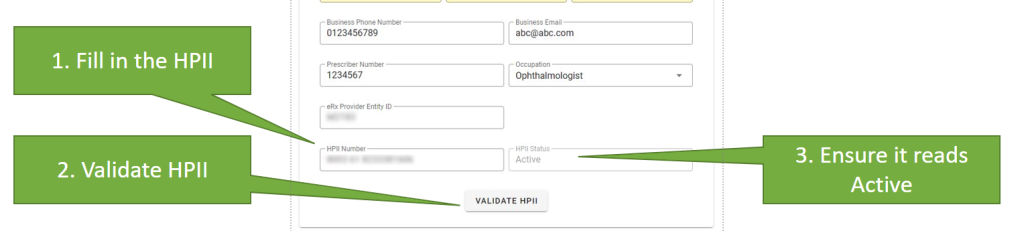
Proceed to fill in their HPII number, ensuring that the status reads as ‘Active‘. Click on ‘Validate HPII‘ to complete the update.